
How to install and set-up Nivo Slider on Drupal
This is tutorial based on the Views Nivo Slider. I gave the credit to mcdazz who helped me to setup views. Nivo Slider is the Most Awesome jQuery Image Slider out integrated with Views and Imagecache modules.
(1) System Requirements (Drupal6 Modules)
- CCK (Content Construction Kit)
- Views
- Views Nivo Slider
- jQuery Update
- Image Cache
- Image API
- Image Field
- File Field
- Link Field
- Token (optional)
(2) Modules Installation
Download all the modules from Drupal Modules and install in the directory yoursitename/sites/all/modules.
Go to administer>site building>modules and enable the modules listed below.
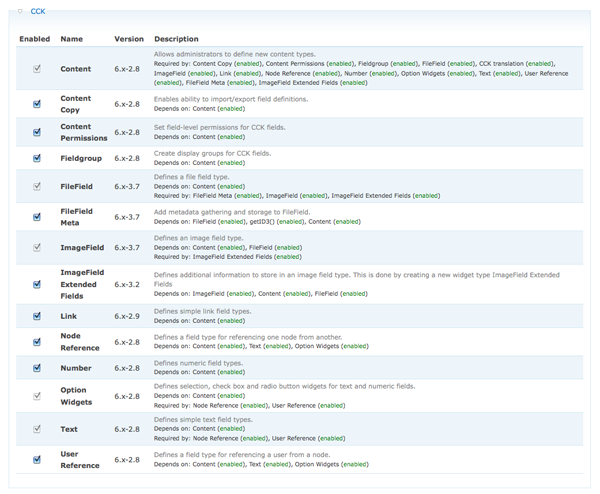
1) On CCK module enable:-Content, Content Copy, Content Permissions, Field Group, File Filed, File Field Meta, Image Field, Image Field Extended Fields, Link, Node Reference, Number, Option Widgets, Text and user Reference.
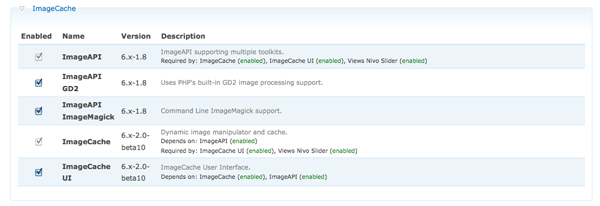
2) On Image Cache module enable:-Image API, Image API GD2, Image API Image Magic, Image Cache and Image Cache UI.
3) On User Interface enable:- jQuery Update.

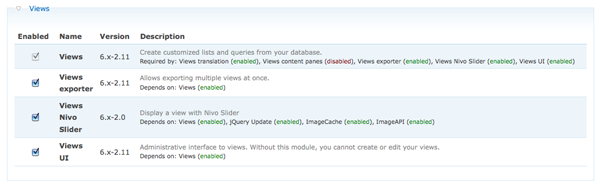
4) On Views Module enable:- Views, Views Exporter, Views Nivo Slider and Views UI.
4) On Token Module enable:- Token (This step is optional but it helps a lot in many situations.)
(3) New Content Type
Now lets create a new content type. administer>Content management>Content types.(You can give any name and can create as many content types as you want).
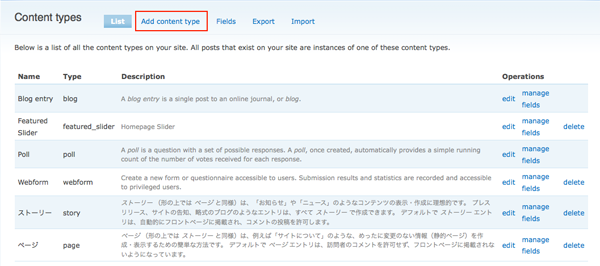
[1] Create a new content type
[2] Give a human-readable name (eg: Featured Slider)
[3] Give a machiene-readable name (eg: featured_slider)
[4] A brief description of this content type. (eg: Home Page Slider)
[5] Save Content Type (Note: If you want you can setup additional Settings here.
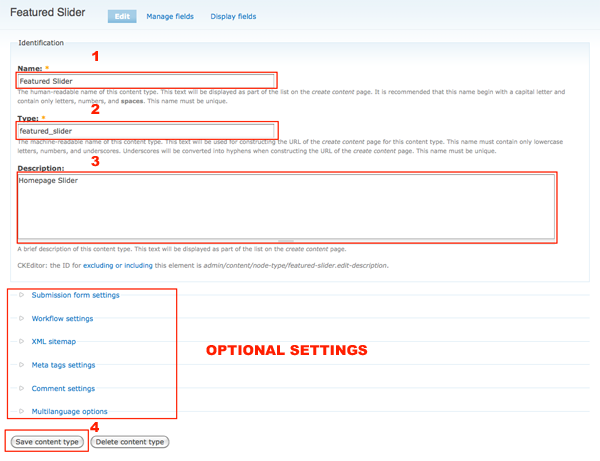
Now we have created a new content type name (Featured Slider) next let's add some fields to our new content.
(4) Field Settings
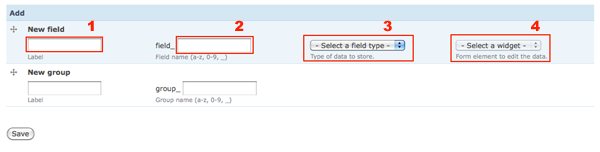
Click on manage Field and add new field as shown below
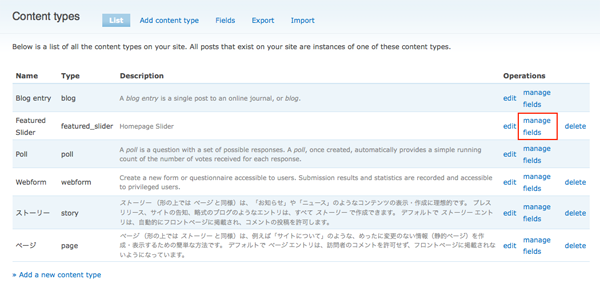
[1] Image Field
New Field> Label: Image, Field Name: field_image, Type of data to store: File, Form element to edit the data: Image.
[2] Link Field
New Field> Label: Link, Field Name: field_link, Type of data to store: Link, Form element to edit the data: Link.
(5) Image Cache Preset Settings
Now let's go and create two image presets. Administer>Site building>ImageCache.
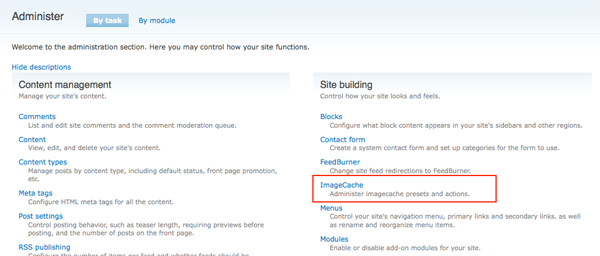
[1] Preset Namespace: Give a machiene readable name (eg: original-image)
[2] Preset Namespace: Give a machiene readable name (eg: thumb-images)

Note: You can resize the image size settings for original and thumb images.
(6) Create Feature Slider Content
I have created four featured slider content for this tutorial.
(1) Click on add content link
(2) Create Featured Slider content
(3) Give a proper title name
(4) Upload slider image
(5) Give alt and title field names
(6) Give a link title and url where you want the slider to be linked
(7) Leave all othe settings as default except for the path field if yo want you can give an SEO friendly URL alias.
(8) Save the content.
Same way create more Featured Slider contents.
(7) View Configurations
Now ler's go and create a new view. Administe>Site building>Views.
If anybody finds it difficult to setup views can dowload this views configuration settings. Copy the data from the text file and go to administer views click import and paste the data on the textarea and click import easy.... DOWNLOAD (.txt format)
-
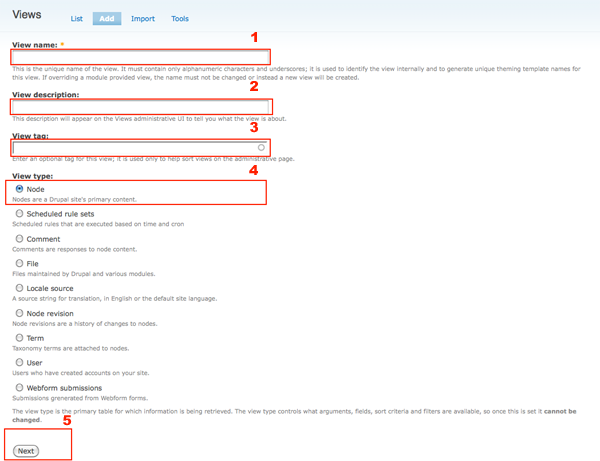
Click Add.
View name: featured_slider
View description: Slider Views
View tag: Slider
View type: Node
Click Next
-
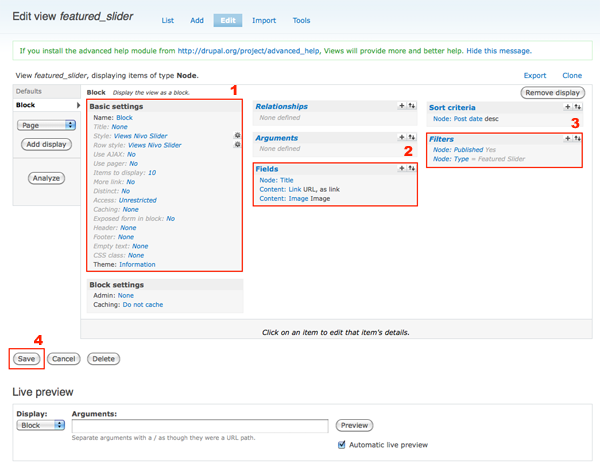
AgainCreate new filed by clicking on "+" button next to Fields
From the Groups drop down menu, select Content and then select Content: link
click add then on the next sreen setup as below
Exclude from display: Enabled
Label: None
Link this field to its node: Disabled
Format: URL, as link
Click Update. -
Create new filed by clicking on "+" button next to Fields
From the Groups drop down menu, select Node and then select Node: Title
click add and then on the next screen just delete "Title" from the Label section.
Link this field to its node: Enabled (only if you want title as a link to it's node.)
OR
If you want the image to be linked with the link field you specified then do as below;
Click on the title field and on the title field settings;
Out put this field as link: Enabled and then on the link path copy and paste the link field pattern generated by token below.
Link this field to it's node: Disabled -
Again
Create new filed by clicking on "+" button next to Fields
From the Groups drop down menu, select Content and then select Image (field_image).
click add then on the next sreen setup as below
Label: None
Format: Image
Link this field to its node: Enabled (only if you want the image as a link to it's node)
OR
If you want the image to be linked with the link field you specified then do as below;
Click on the image field and on the image field settings check out put this field as link
and then on the link path copy and paste the link field pattern generated by token below.
make sure the image field is not enabled the Link this field to it's node.
(NOTE: If you want to use the Token Patterns for replacing the link, please keep this order in the fields First link field, then title, then image and so on, because if you kep the link field last then it won't show up as a Token pattern for replacing)
Now lets create filters;
-
Click on "+" button next to Filters
From the Groups drop down menu, select Node, and then select Node: Published.
Click Add. On next sreen Set the following: Published: Yes and Click Update. -
Click on "+" button next to Filters
From the Groups drop down menu, select Node, and then select Node: Type.
Click Add. Set the following:
Operator: Is one of
Node type: Featured Slider
Click Update. -
Next we need to set the Style (under Basic settings).
Click on Style and on the sreen below choose Views Nivo Slider.
Click on the Unformatted link (next to Style).
Select Views Nivo Slider from the options.
Click Update.
At the next screen, you can configure the various options for Views Nivo Slider. I set it as default.except for the following:
Image field Preset: original
ImageCache presets for use in thumbs: thumbs
Click Update. -
Next we need to set the Row style .
Click on the Fields link next to Row style.
Select Views Nivo Slider.
Click Update. Set the following options:
Image field: Content: Image (field_image)
Title field: Title
Link field: Content: Link (field_link)
Click Update. and Click Save. -
Next we need to configure the newly created View to show up as a Block. Select Block from the drop down menu (above the Add display button).
Click Add display. and Click Save.
[8] Finally Enable the Block
Now go to Administer>Blocks and you can see a new block has been created by view. Enable the block on to the desired region and create a new featured content. In my case I have created a new region called featured content.

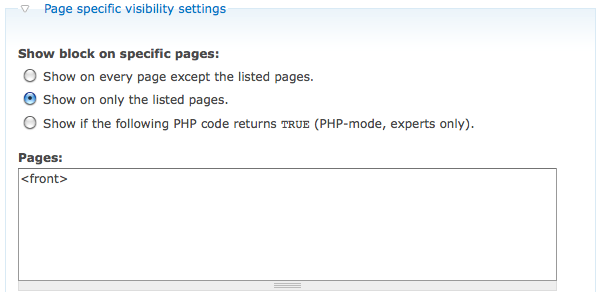
Note: If you want this slider to show on a particular page or front page only, just click on the configure link next to the block and then scroll down till you see page specific visibility settings then select Show on only the listed pages. then type <front> to display this block only in the front page. If you want to display any othere pages just type in the URL of the page. For details read the help text in the configuration section.
You can see a live action on my site. http://www.brightwebsitedesign.com/.
I hope this tutorial was helpful to you. Please write comments and suggessions below.


Comments
respond this topic
It's known that money can make us autonomous. But how to act when someone does not have money? The one way only is to try to get the personal loans or just short term loan.
locksmith
Your content is invariably probably one of the most effective . All around feeling of the blog is actually fabulous .
Thanks
Thanks very much. Your tutorials (on youtube and here) have been very helpful.
Hi I have a problem with the
Hi
I have a problem with the pagination on http://logistik.dambergs.dk/ - it simply doesnt work!
Can anyone tell how to get the direction pager to work proberly?
Thanx alot in advance!
Many thanks
Hi,
This is a great tutorial. Thank you.
For information, It doesn't work the first time because my images had spaces in their names. I replaced spaced with underscores and worked like a charm.
You can see it in action here: Belle Montre.
Getid3 missing error
ok, i see so the Getid missing error was ok. Following the videos was much better to follow!!!
Thanks!
Thank you for the information
Thank you for the information it worked well.
mole removal
Image's Will not show
I followed your tutorial all the way through. Everything went smoothly until i tried to put it into action. I have it in in a block on my home page and the slider shows up...but no images. So bascially everything is there but the images. There is text (the title of the content) and that is it. you can see at fwb.charliehighers.com/fwb (its located right under home) Help plz.
images won't show
so i did this perfectly but the images wont show..i did try chcking the boxes that have anonymous user and authenticated user...it still did not change. The view is there but the images are not...help?
Thanks
Thanks a lot Friend, your videos and this tutorial helps me a lot!
Link Not working
Hello,
I noticed a lot of people having issues with Link's not working on the Modules bug page. One solution that seems to have worked is by changing the link format.
For section 7.1 of the instruction above instead of
Format: URL, as link
use
Format: Title, as link (default)
This did the trick for me.
Richard
New extra field on Nivo Slider
I have successfully installed Nivo Slider that shows title and image.
Now I want to add extra field short description. I followed instructions from the point 4 to point 7.
Input text into the database works fine but without display on frontpage.
Any suggestion?
tnx
Please Solve This Problem!
All the things work fine but as soon as I click on style and select Views Nivo Slider I get this error.
warning: Parameter 3 to views_ui_build_form_state() expected to be a reference, value given in C:\xampp\htdocs\drupal-6.22\modules\views\includes\admin.inc on line 1606.
warning: call_user_func_array() expects parameter 1 to be a valid callback, no array or string given in C:\xampp\htdocs\drupal-6.22\includes\form.inc on line 377.
warning: Invalid argument supplied for foreach() in C:\xampp\htdocs\drupal-6.22\modules\views\includes\admin.inc on line 1542.
warning: Attempt to assign property of non-object in C:\xampp\htdocs\drupal-6.22\modules\views\includes\admin.inc on line 1613.
Display "Defaults" uses fields but there are none defined for it or all are excluded.
I got the same error when i was working on latest news block and in style selected table.
please help.
Hello mate, I followed each
Hello mate, I followed each and every step on the tutorial but I still have problem. When I am logged in its working fine and when I log out only the captions or title and displayed and there is no image even though I have ticked anoyomous user in the block. The link is http://britishplasticsurgeon.com/.
Can u pls help me out???
Thanks a lot in advance
Set the image view permission!
Set the image view permission for anonymous users too.
And that will to solve your issue.
Best Wishes!
Thumbnails not showing
Firstly thank you for such a detailed tutorial,it surely helps esp. since lm a drupal newbie, l managed to get the nivo slider running but then the thumbnails are not showing, how do l get both the captions and the thumbnails to show.
Text Overlay from Content Body Text
I have tried a number of other slider solutions and this is the only one I could get to work 98% as it was advertised. (98% because when I use thumbnails they are overlapping but that's a CSS issue I haven't hunted down yet, I'm sure.)
This comment/question:
Is it possible to add another text overlay that would display the content of the 'body' field of the Feature Slider content type?
Thanks for a process that works without a Drupal engineering degree. lol
TBG
Question...
Is it possible to have small thumbnails to the side of the slider with this drupal 6 nivo slider? kind of like this one.... http://www.thecrew.com/
Thanks,
Vladimir
prokhnevskiy.1@osu.edu
Thanks but one question...
I watched your you tube video on this, and it was so helpful. Thanks!
I am just wondering how I can make each slider image can link to an outside url when clicked on.
Use link field module!
Please see the words I have written in Orange color about link! Also please see the views slideshow module tutorial, where I have clearly specified how to do this well! OR Watch my latest videos on YouTube! Best wishes.
Caption titles
So, I know you can set captions just by modifying the title of the post. Is there a way to specify a non-required field as the caption, so that captions are optional? It seems that either captions are either on, or off... and because the node title is a required field, you can't have some sliders with no captions, and others with a caption.
Does this make sense? Hopefully I haven't overlooked something simple.
Let me know. LOVE the module though. It's very helpful.
nivo slider error
Somebody can help me for using "Nivo slider" ?
I followed all the steps of the tutorial, but the slider only displays the first frame of the slider and remains on it. I checked the version of jquery update, but it is up to date.
thank you to propose some solutions !
Title isn't showing up as a link?
Thanks for the great tutorial! I'm just having one problem. I've set each slider to link to an existing page (not their own node) and that works great. However, the title/caption isn't showing up as a link.
Lightbox or Shadowbox?
Great tutorial btw, I got the slider working. I've been trying to figure this out for a while now, but is there any way to incorporate lightbox or shadowbox when the image is clicked on? Thanks.
Install Lightbox and choose image style as lightox
You will get an option in views imagefield advanced settings to configure how you want to link the image field, by default it will be link to original image from here you choose the link to your Light box. I hope you got some idea.
Best wishes
Thanks for the quick reply. I
Thanks for the quick reply.
I apologize in advance as this is fairly new to me. I went to Site Building > Views > Default Tab > Fields > Content: Image
I changed the format of Content: Image to Lightbox2:default_size -> Original.
This obviously didn't work and I'm wondering if I'm looking at the right spot. Thanks
Drupal 7 and Views 3
Is there any tutorial available for Drupal 7 combined with Views 3?
Coming Soon!
Drupal7 version of this module is not stable yet once it's stable I will create new tutorial on Drupal7 version.
Best Wishes
Script error!
First,thank you very much,this article is really heapful.
And I do this step by step,but I got some errors when use IE browse to visit my site.
Here is the error info:
Object doesn't support this property oe method.
URL:***/sites/all/modules/views_nivo_slider/js/views_nivo_slider.js?Y
I use firefox,It's really ok.
But,when I use IE,got some problems,and the images cann't be show on the site.
I don't what happened and how to fix this problem.
Could you help me to solve this problem?
Thanks you very much.
Hi, Thanks for your tutorial.
Hi,
Thanks for your tutorial. One questions: I got my nivo slider worked perfect but when I tried to have two nivo slider on same drupal 6 page. Only first was working fine and second one was just showing images as a list. Can you tell me how can I have two nivo sliders on a one page.
Thank you,